Replaces Humanity from July 2026 · Updated 2026-05-26
1. Login
2. Shift
3. Accept
4. Cancel
5. Clock in/out
📝 Prep
6. Lessons / Compensation
❓ FAQ
🔘 Button Reference
1. First-time access
1
Open the personal URL we sent you (or scan your personal QR).
2
You'll land on the Home screen automatically — no password required at this stage.
💡 Bookmark or add to home screen for easy access next time (see steps A/B below).
📱 Setup: Home Screen + Notifications
Please add the portal to your home screen AND enable notifications. Without this, you will not be notified when new lessons are assigned to you.
A. Add to Home Screen (iPhone)
A-1
Open the portal in Safari. Tap the Share button ⎙ at the bottom.
A-2
Scroll down and tap "Add to Home Screen".
A-3
Tap "Add" in the top-right. The icon will appear on your home screen.
B. Enable Notifications
Open the portal from the home screen icon (not Safari) for notifications to work.
B-1
An orange "Enable Notifications" banner appears at the top. Tap it.
B-2
iOS shows a dialog. Tap "Allow".
B-3
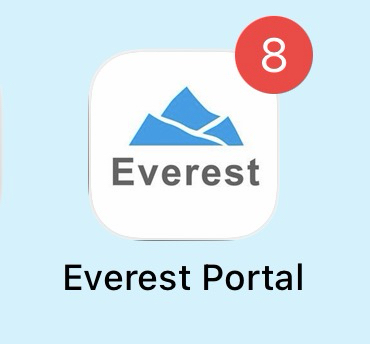
Done! When new lessons are assigned, the icon shows a red badge (like the "8" above) and a notification arrives.
Tip — if you don't see the orange banner, make sure you opened the portal from the home-screen icon (not Safari) and you're using iOS 16.4 or later.
Android (Chrome)
Open the portal in Chrome → ⋮ menu → "Install app" or "Add to Home Screen". Then open it from the home-screen icon and allow notifications when prompted.
What you'll see at the bottom
The bottom navigation has 5 icons:
Bottom Navigation
🏠Home
📅Calendar
🔁Sub
📝Shift
💴Compensation
What you'll see at the top right
Three buttons live in the top-right of every screen:
Top-right buttons
🔔3
📖
Logout
🔔 Notification bell — your message inbox. Whenever a new lesson is assigned, reassigned, or a Sub-lesson is booked, an item lands here. The red badge shows how many unread items you have. Tap the bell to open the list, then tap each item or "Mark all as read" to clear the badge.
Why two notification systems?
1. Push notification (the system pop-up on your phone) — instant, even when the app is closed. Tap the orange "Enable Notifications" banner once to turn this on.
2. 🔔 In-app inbox (the bell, top-right) — always available, lets you scroll back and see what came in earlier. Use this when you want to re-check something.
2. Submit your unavailability
Tell us when you can NOT work. By default, every day is "Available all day" — you only need to add unavailable windows.
Color legend
Green text = ✓ Available all day (no unavailable entries)
Red entry = 🚫 Unavailable time window
Orange button = ✓ All Day Off (entire day off)
Step by step
💡 You don't need to fill everything in every week. Your most recent submitted shift is automatically copied into the new week as a starting point. Just change the days that are different and tap Submit Shift. (A green note appears at the top of the Shift screen when it has been copied.)
1
Tap the Shift tab at the bottom.
2
Use ‹ / › at the top to pick the week.
3
If you can work all day: do nothing! Just submit. The day shows "✓ Available all day" automatically.
Available all day
Wed 6/17
✓ Available all day
Locations:MyogadaniJiyugaokaShibuya
4
If you can't work for part of the day: tap + Add time, enter start/end time, Save. A red entry appears.
Partially unavailable
Tue 6/16
🚫 07:00 - 09:00✕
Locations:MyogadaniJiyugaokaShibuya
5
If you can't work at all that day: tap All Day Off. The button turns orange when active.
All day off
Mon 6/15
🚫 All day
6
Choose Locations chips for each day (tap to enable/disable). Colored = enabled, faded = disabled.
Locations (only Myogadani enabled this day)
Locations:MyogadaniJiyugaokaShibuya
7
Scroll to the bottom → tap the big blue Submit Shift button.
8
After you submit, the top of the Shift screen shows your status: ⏳ Submitted — waiting for Admin approval → once the office checks it, it changes to ✅ Your shift has been confirmed by Admin.
The Calendar tab also shows ⏳ Pend. / ✓ Appr. on each week, so you can tell at a glance whether your shift was received and approved.
⚠️ Max 2 unavailable windows per day.
To remove one, tap the small ✕ on the right of the red entry.
🔒 Days within 3 weeks of the lesson are locked.
To cancel an already-assigned lesson inside this window, use Cancel Request from the Calendar tab instead (see tab 4).
✅ From your June 30 onwards unavailability, please use this app — not Humanity anymore.
3. Accept your lessons
Once admins assign you a lesson, it shows on your Home tab with a yellow Accept button.
1
Open Home at the bottom.
2
Find a lesson card with a yellow Accept button.
Before Accept
14:00 - 15:30Myogadani
👤 Yuki S. · Normal
3
Tap Accept. A confirmation dialog appears.
Confirmation dialog
everest-instructor-pages.netlify.app says
Accept this lesson? After accepting, changes can only be made via a cancel request.
4
Tap OK. The button turns green ✓ — you're locked in.
After Accept
14:00 - 15:30Myogadani
👤 Yuki S. · Normal
💡 A little request: the shifts you submit are the times you told us you're available, so as a rule please do go ahead and Accept the lessons assigned within those times. If lessons are often left un-accepted, it becomes hard for us to build the schedule around you, and over time we may be able to offer you fewer lessons. Thank you so much for your cooperation — it really helps the students and the whole team. 🙏
⏳ Haven't accepted a lesson yet? Any lessons still waiting for your Accept appear in the Awaiting tab (⏳) at the bottom — check there so none slip through.
4. Request to cancel a lesson
If you've already Accepted a lesson but can't make it (sick, emergency, etc.), use Cancel Request. Admins will find a replacement.
1
Open the Calendar tab → tap the lesson's date.
2
Or on the Home tab, tap the Cancel Request button under the lesson card.
3
Enter the reason. To avoid a penalty, you must attach a certificate (e.g. a doctor's note) as proof (max 5MB).
4
Tap Submit. Admins are notified instantly, and other instructors get a "Sub Request" so the first to claim it takes over.
⚠️ More than 2 cancel requests in a month may lower your priority score
(per Service Agreement Att.2 [3] (8)).
💡 Can someone else's cancel become my lesson?
Yes! When another instructor submits a cancel request, you may see it in the Sub tab (🔁). Tap Take this first to claim it — first-come, first-served.
5. Clock in / Clock out
At each campus, there's a dedicated iPad on the reception counter.
1
Find the iPad on the reception counter.
2
Tap your photo on the grid.
Instructor grid on iPad
A
Alice
Tap to start
B
Bob
⏰ Working since 14:02
C
Carol
✓ Out 21:05
3
The camera opens. Center your face. Tap the shutter, then tap Clock In.
Camera screen
📸
Center your face and tap the shutter
⏰ Clock In Now
4
After your last lesson, repeat — tap your photo, take a photo, then Clock Out.
💡 Why a photo? It's just attendance proof — not face recognition. The photo is stored privately and reviewed only if there's a discrepancy.
⚠️ If you forget to Clock in, please notify the campus admin staff in person as soon as you notice so they can correct the record.
⏰ About lateness: Please arrive on time. Detailed handling rules are currently under review and will be shared separately.
📝 Prep (preparation time)
What changed (2026-05): Prep was previously bundled into the first lesson of the day. From now on, Prep appears as a separate block on your calendar, so it's clear when prep time begins and ends.
What is Prep?
Prep = preparation time before your lesson block. Use it to review materials, set up the room, and get ready. (How long your Prep is depends on your number of lessons that day — see below.)
When does Prep appear?
1
Before your earliest lesson of the day. If your first lesson is 15:00, a 30-min Prep block appears 14:30–15:00.
2
If you have 3 or more lessons in a row, Prep is 60 min total (shown as a single 60-min Prep block on your calendar).
3
If you have 1 or 2 lessons, Prep is 30 min.
Auto-split when a middle lesson is cancelled
If a lesson in the middle of your 4+ block is cancelled in advance (not same-day), Prep automatically splits in two:
After Lesson 3 is cancelled (in advance):
14:30–15:00 Prep (30 min) ← start 30 min later
15:00–16:00 Lesson 1
16:00–17:00 Lesson 2
17:00–17:30 Break (30 min)
17:30–18:00 Prep (30 min) ← new Prep before Lesson 4
18:00–19:00 Lesson 4
Benefit: Instead of a 90-min break in the middle, you only need a 60-min break — and you can come in 30 minutes later.
Trial lessons
No separate Prep block for Trials. Trial = 90 min total (15 min prep + 60 min lesson + 15 min feedback). Prep is already included.
6. Lessons / Compensation
🚧
Under development
This section is currently being built. Until it's ready, please continue submitting your monthly invoice the same way you do now
(no change to your current billing process).
We'll let you know on Talknote when this becomes available.
— Preview of upcoming features (not yet functional) —
This tab is currently being built. Until it's ready, please continue submitting your monthly invoice as you do now.
❓ Frequently Asked Questions
I lost my personal URL
Please post on Talknote with @Mei mention and we'll resend it to you.
Can I change my unavailability after submitting?
Yes — you can edit anytime up to Saturday 23:59. Lessons are finalized on Monday, so once Monday arrives the week is locked. To cancel an already-assigned lesson after that, use Cancel Request from the Calendar tab.
What's the difference between "All Day Off" and "+ Add time"?
All Day Off: I can NOT work that whole day. One tap = whole day blocked. + Add time: I can work most of the day but NOT during a specific window (e.g. 07:00-09:00). Use this for partial unavailability.
What if I Accept and then need to cancel?
Use the Cancel Request button on the lesson card. Admins will look for a replacement; if found, your lesson is removed from your schedule.
Will I be notified when a new lesson is assigned to me?
Yes — you'll get push notifications even when the app is closed, as long as you complete these one-time setup steps:
3-step setup:
1. Open the portal URL in your phone's browser (Safari on iPhone / Chrome on Android).
2. "Add to Home Screen" (iPhone: Share → Add to Home Screen / Android: ⋮ → Install app).
3. Tap the new home-screen icon to open the app → when prompted "Allow notifications?" tap Allow.
Once set up, you'll receive notifications:
• Within seconds of being assigned a new lesson
• When a colleague needs a substitute (sub request)
• Even if the app is completely closed
iPhone requires iOS 16.4 or later for PWA push notifications. Add to Home Screen is mandatory — Safari browser alone won't receive pushes.
Can I check past months?
Yes — in the Compensation or Calendar tab, use the ‹ ‹ arrows to navigate back as far as you need.
Why does the iPad ask for camera permission?
For Clock in/out face photos (attendance proof, not face recognition). Tap "Allow" — it's only used during clock-in/out.
Where can I view my upcoming lessons?
Home tab → today + this week. Calendar tab → entire month at a glance.
How do I log out?
Tap your name at the top-right of the screen, then "Log out". You'll be asked to confirm.
🔘 Every button explained
Bottom navigation
🏠 Home
Today's and this week's lessons. Accept / Cancel buttons appear here.
📅 Calendar
Whole month's lessons in a grid view. Tap a date for the day's lesson list.
🔁 Sub
"Sub Requests" — cancel requests from other instructors you can take over. First-come-first-served.
📝 Shift
Register your unavailable windows / All Day Off for upcoming weeks.
💴 Compensation
Lesson / prep / cancel counts for the month. Invoice generation coming soon.
Shift tab buttons
‹ / ›
Switch weeks (one tap = one week earlier / later).
All Day Off (white)
Tap to mark this day as fully unavailable. Turns orange.
✓ All Day Off (orange)
Active — this day is fully off. Tap again to undo.
+ Add time (blue)
Open a popup to enter an unavailable window (max 2 windows per day).
✕ (small red, on a red entry)
Remove that unavailable window.
Submit Shift (big blue, bottom)
Save your unavailability for the week.
Location chip (Myogadani / Jiyugaoka / Shibuya)
Tap to toggle whether you can work at this campus on this day.
Home / Calendar lesson cards
⚡ Accept (yellow)
Confirm a lesson assigned to you.
✓ Accepted (green)
You've already accepted — locked in.
Cancel Request (red border)
Submit a request to cancel a lesson you can't make. Attach a file if needed.
Reminder badge (orange)
Reminder that the Accept deadline is approaching. Tap Accept ASAP, or contact staff if you can't.
Sub tab
Take this
Take over another instructor's lesson. First tap wins.
Decline
Hide this request from your view (others can still claim it).
Compensation tab
‹ / ›
Switch months.
📄 Invoice (Coming soon) (gray)
Currently disabled. Will activate once rates are finalized.